 Critter VTT
 Critter Notes
The soundtrack to your game, played live.
Music, sound effects and ambience for your tabletop game, played from your computer to everyone at the table: in Critter VTT, or in a Discord or Fluxer voice channel.
Free and open source. Windows 10 and 11, or any modern browser.
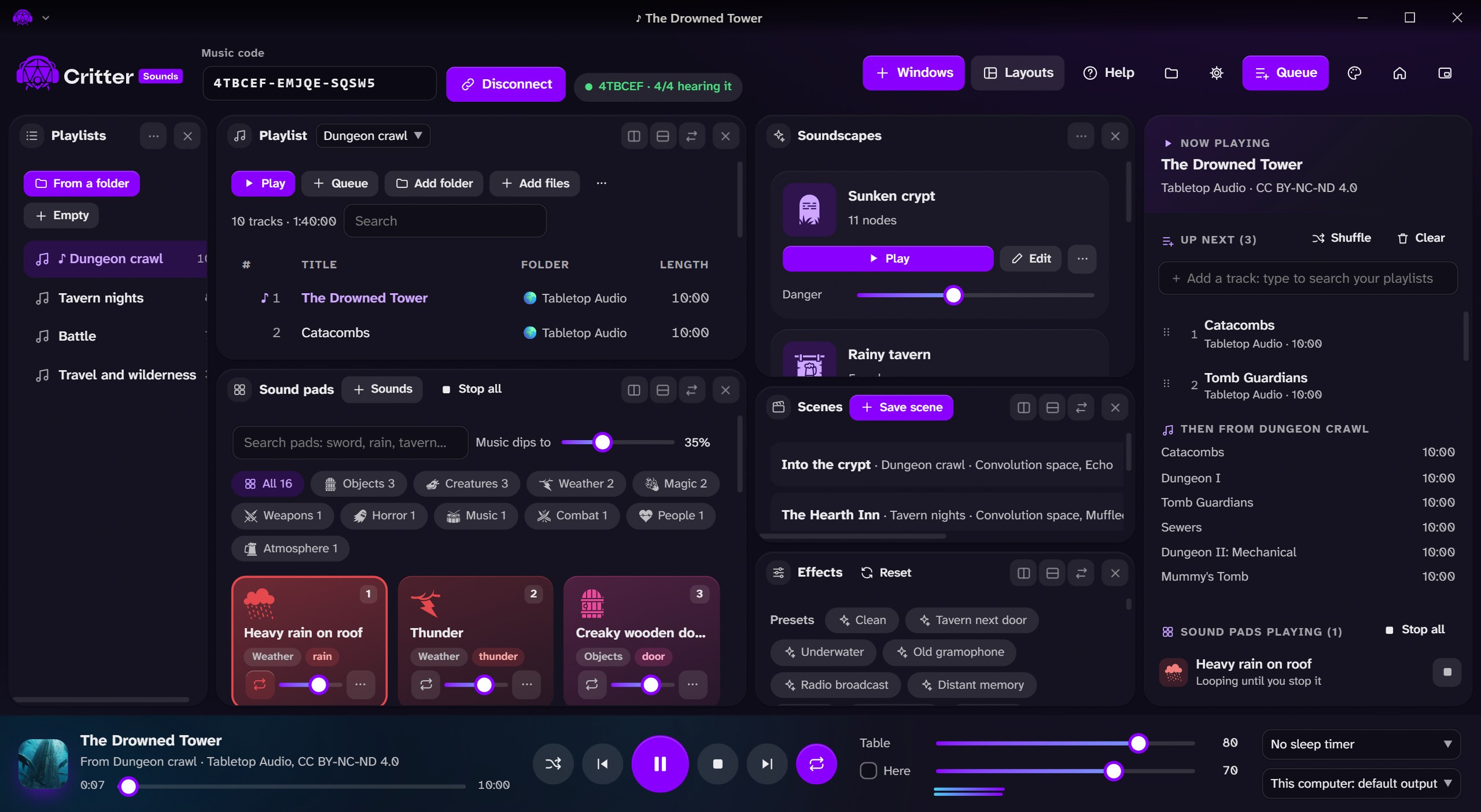
Everything the music needs.
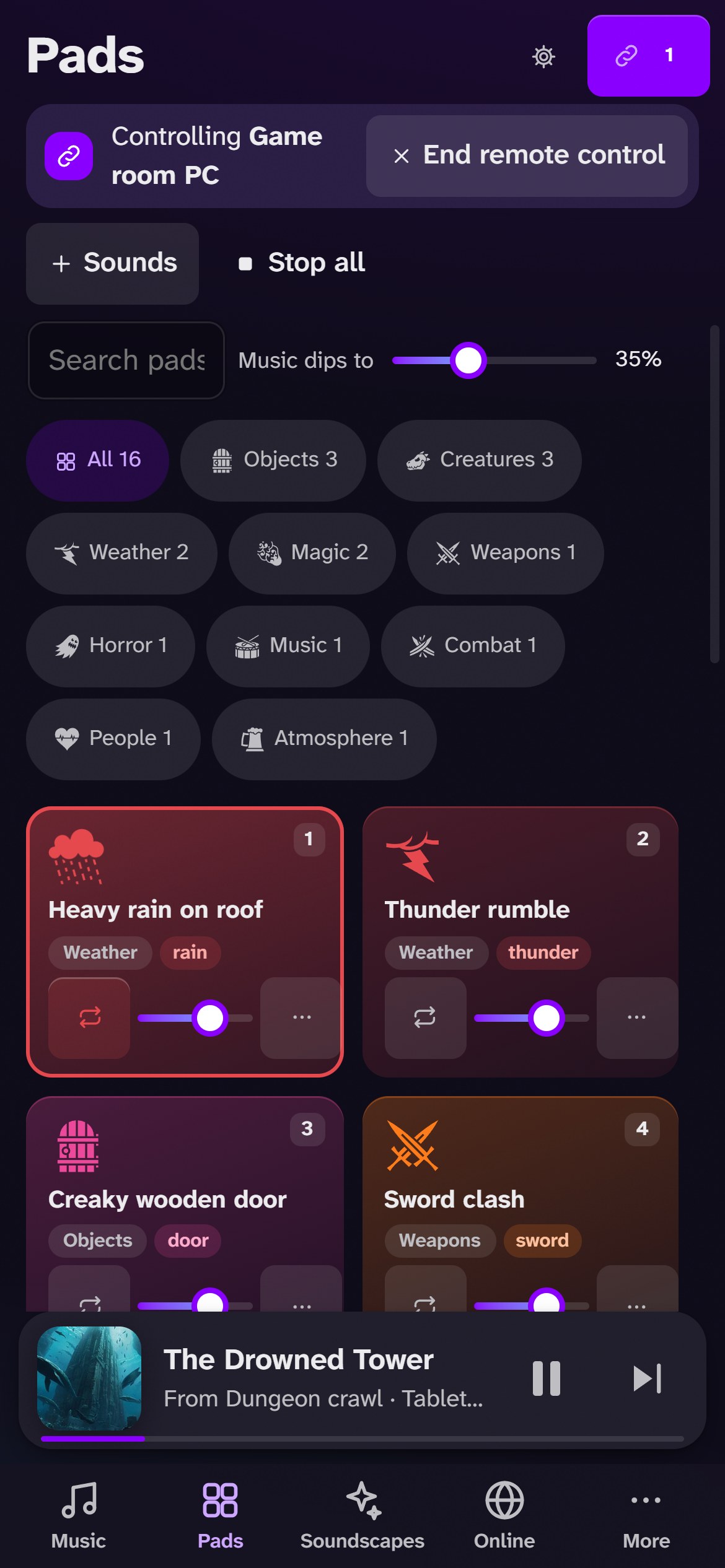
It plays from your computer and streams to every player over WebRTC, so there’s nothing to upload and no limit on tracks.
- Playlists from your folders, with a queue, fades and crossfades.
- Sound pads that pick their own icon and tag from the name; keys 1 to 9 play them, and the music dips underneath.
- Scenes that remember a playlist with its effects and volume, and crossfade into it.
- Effects such as Tavern next door, Underwater, Cave and Boss fight, applied on each player’s side.
- Discord and Fluxer bots that play the same mix in a voice channel.
Living backgrounds, built from nodes.
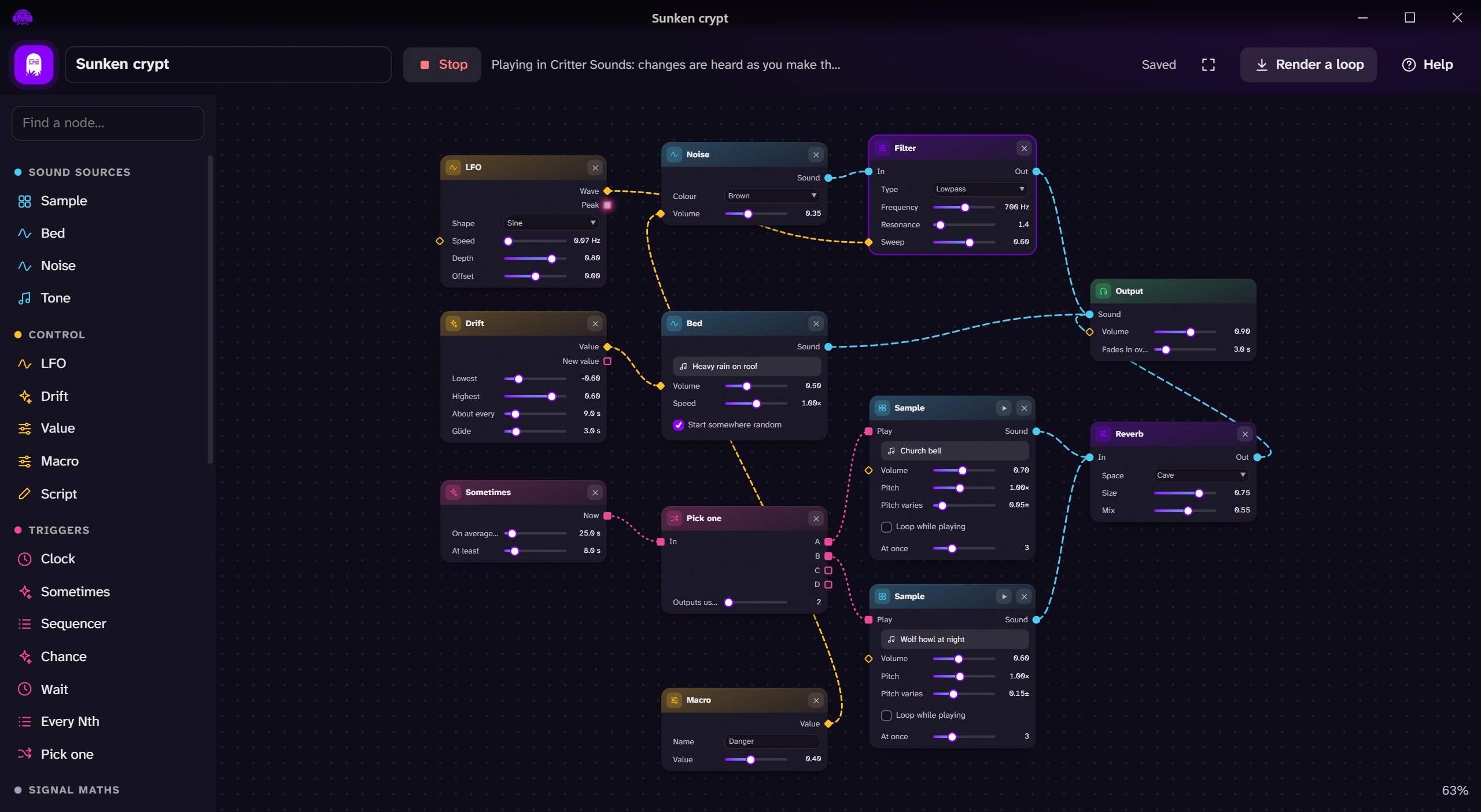
Patch noise, samples, LFOs and random triggers together: rain that comes and goes, a bell that tolls now and then, a wolf in the distance. Every change is heard as you make it.
- A node editor with sound, control and trigger cables, colour-coded.
- Macro sliders like Danger or Intensity show on the soundscape’s tile, to change it while it plays.
- Render a loop up to ten minutes long, crossfaded so it loops without a seam.
- Your own nodes in a few lines of JavaScript.
Free music, credited.
Search free music and sound effects inside the app. Preview it, queue it, make it a pad, or save it to play offline. Every track keeps its credit, and players see it.
- Tabletop Audio with about 520 ten-minute ambiences and pieces of music.
- Incompetech with about 1,440 pieces by Kevin MacLeod.
- Openverse and Freesound for sound effects, each with its license.
- YouTube search, keeping only the sound, for what you may use.
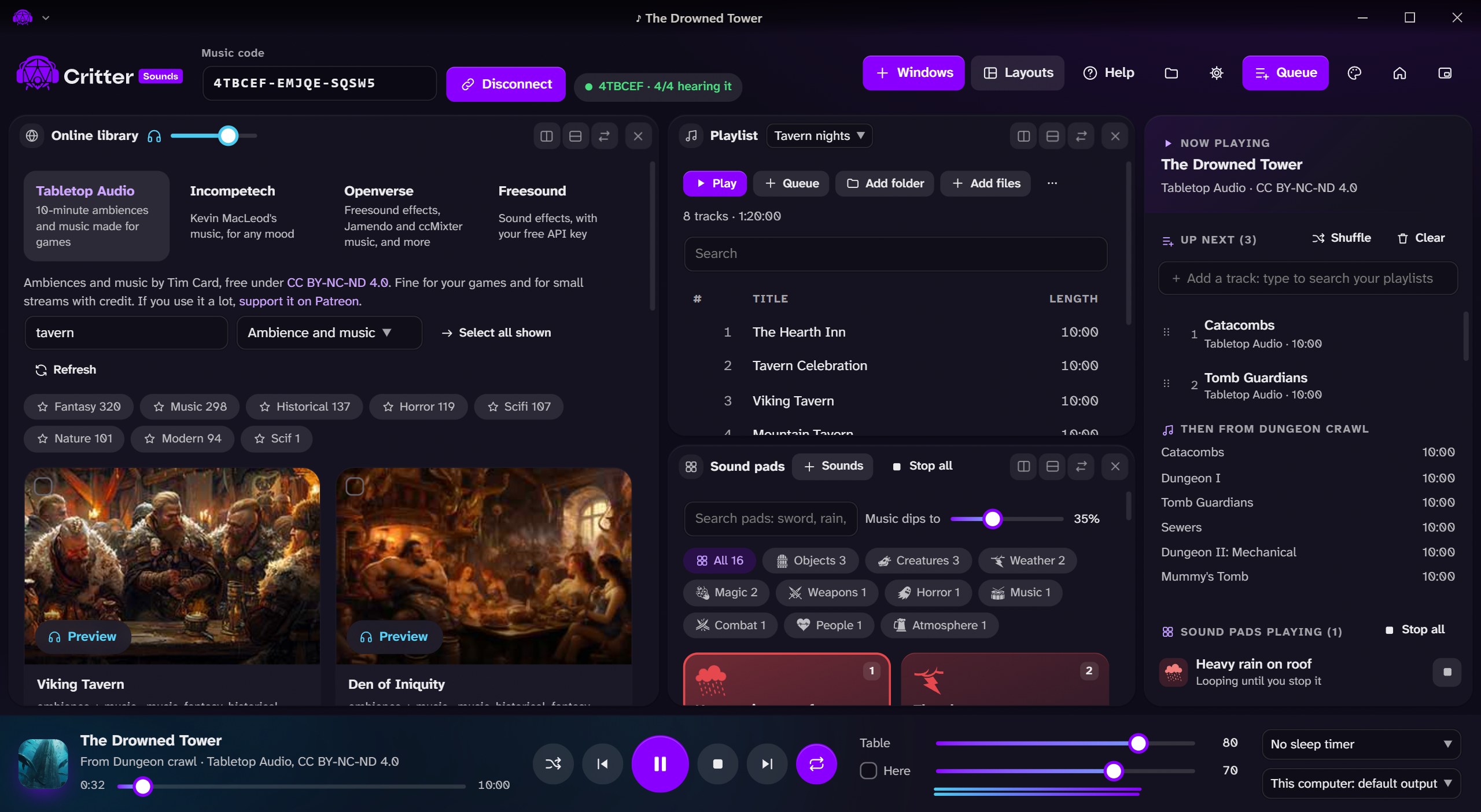
Run the music from a phone or tablet.
Critter Sounds also runs in a browser at sounds.crittervtt.com. On a phone it works like an app: sections at the bottom, a player that slides up, and the swipes you know from your iPhone.
- Like an app on iPhone and iPad: add it to your Home Screen from Safari’s Share menu (how), and it opens full screen. On Android, there’s an app.
- Swipes down to close the player, from the edge to go back, and on a track to play it next or add it to the queue. Every swipe has a button too.
- Your sounds stay yours in your browser, on your device. Nothing is uploaded.
- On a tablet playlists sit beside their tracks, with the player along the bottom.
- What needs Windows saving sounds, YouTube, the voice-chat bots and rendering loops say so, and come back while you control the desktop app.
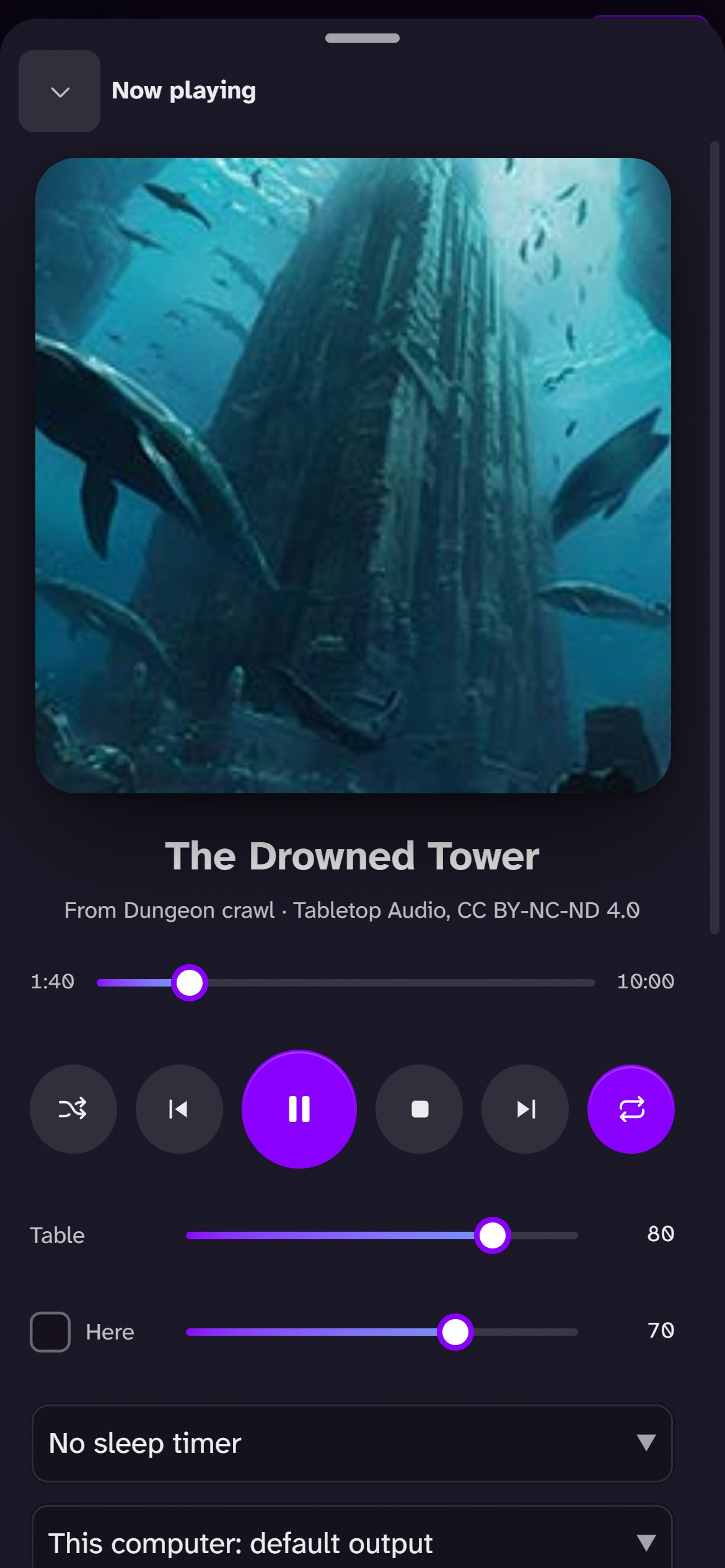
Control the desktop from your phone.
Critter Sounds finds the others on your network. Ask from a phone, a tablet or another computer to control the desktop app: it shows who’s asking and a code to compare, and nothing happens until someone there presses Allow.
- Your library, over there the phone shows the computer’s playlists, pads and soundscapes, and plays them on the computer.
- Downloads stay on the computer save from the online library or YouTube, and the files land on the desktop, never on the phone.
- Only on your network after the handshake the two talk directly, never through the internet.
- A pairing code for when a device doesn’t show up by itself.
The little things that help.
Your layout, your way
A canvas of windows you split, dock and resize, with ready layouts for playing and preparing.
Session log
Every track, pad and scene is logged with its time, and shows as small notes in Critter VTT’s chat.
Never louder
Effects are loudness-matched, so they never make the music louder. Any player can turn them off.
Voice channels
A bot of your own joins Discord or Fluxer and plays the table’s mix, effects included.
Updates itself
New versions install from inside the app, with what changed.
Guided from the start
A short setup, a quick and a full tour, and a guided first soundscape.
One code, and the table hears it.
In Critter VTT, the lobby owner opens Music and copies the table’s music code. Paste it into Critter Sounds and press Connect. Only an app with the right key can play to your table, and each player sets their own volume.
1. Open your table
Start a lobby in Critter VTT and open Music in the bottom bar.
2. Paste the code
It looks like ABCDEF-KEY12-34567: the lobby, then the key.
3. Play
Tracks, pads and soundscapes reach every player with their credits.
Three apps, one table.
Critter Sounds plays to Critter VTT, the table, and takes its cues from Critter Notes, the GM’s notebook. All three connect through the same Homebase.
The free virtual tabletop: battle maps, 3D dice and sheets, in a browser or on Windows.
Take a look →Music, sound pads and soundscapes, played live to your table, Discord or Fluxer.
You’re here
Plan sessions, write the world, draw maps and boards, and send it all to the table.
Take a look →Get Critter Sounds.
For whoever runs the music. Plays from your computer to the table, Discord or Fluxer, and updates itself.
Android
Critter Sounds as an app on your phone or tablet: run the music from it, or control the desktop app on your network.
In your browser
Nothing to install. Works on computers, tablets and phones, and controls the desktop app on your network.
The installer isn’t code-signed yet, so Windows SmartScreen may warn the first time: choose More info › Run anyway. On Android, allow your browser to install apps when it asks (the app isn’t on Google Play yet). Every version and what changed is on the Releases page.
Put Critter Sounds on your home screen.
There’s nothing to download from the App Store. Safari adds Critter Sounds to your home screen, and it opens full screen with its own icon, like an app. It updates by itself whenever Critter Sounds does. On Android, there’s an app.
1. Open it in Safari
On your iPhone or iPad, open sounds.crittervtt.com.
2. Tap Share
The square with the arrow, at the bottom of Safari (on an iPad, at the top). Then scroll down a little.
3. Add to Home Screen
Leave Open as Web App on, then tap Add. Critter Sounds is now on your home screen.
Sounds you add on a phone stay on that phone, in the app. To play your computer’s music from the phone, open Nearby and control the desktop app.
On Android, allow your browser to install apps when it asks (the app isn’t on Google Play yet). It updates itself from then on.